
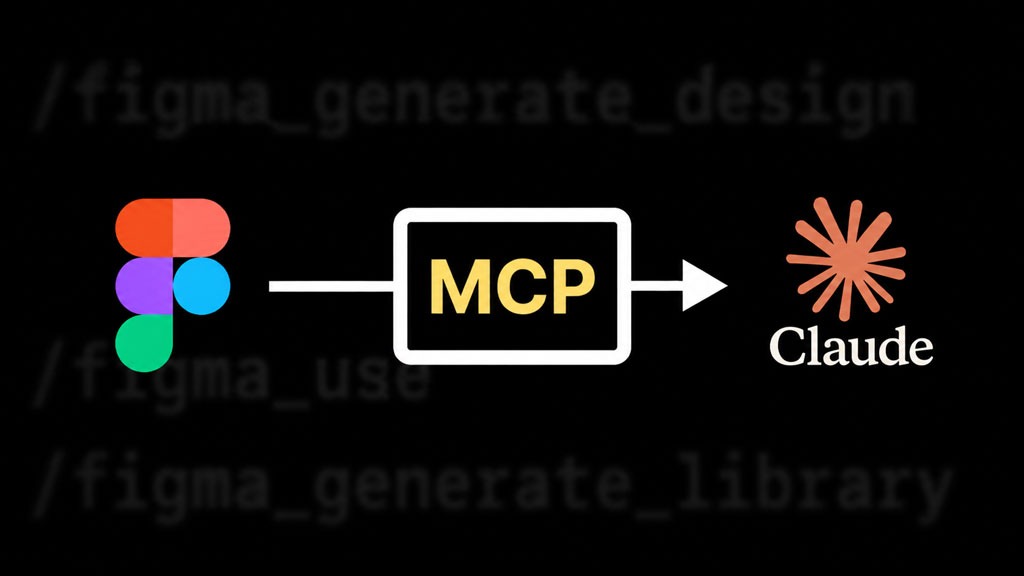
Turning a Figma design into real code used to be slow. A developer would look at a design and guess the spacing. Or someone would paste a screenshot into a chatbot and hope for the best. Either way, the AI never actually knew your component names or your color codes. It was just guessing from a picture.
Figma’s MCP server fixes that. It gives AI tools direct access to your actual design file. Real component names. Real colors. Real layout. No more guessing from screenshots.
Key Takeaways
Figma has had an official MCP server since June 2025. It lets AI tools read your design files directly.
The main tool, get_design_context, turns a Figma frame into code (usually React and Tailwind).
Other tools like figma-generate-design work in reverse: they turn an app screen into a Figma design.
Code Connect is the one setting that makes the biggest difference in code quality.
You need a paid Figma seat (Dev or Full) to use it properly. Free accounts are limited to 6 calls a month.
What Is MCP, in Plain Terms?
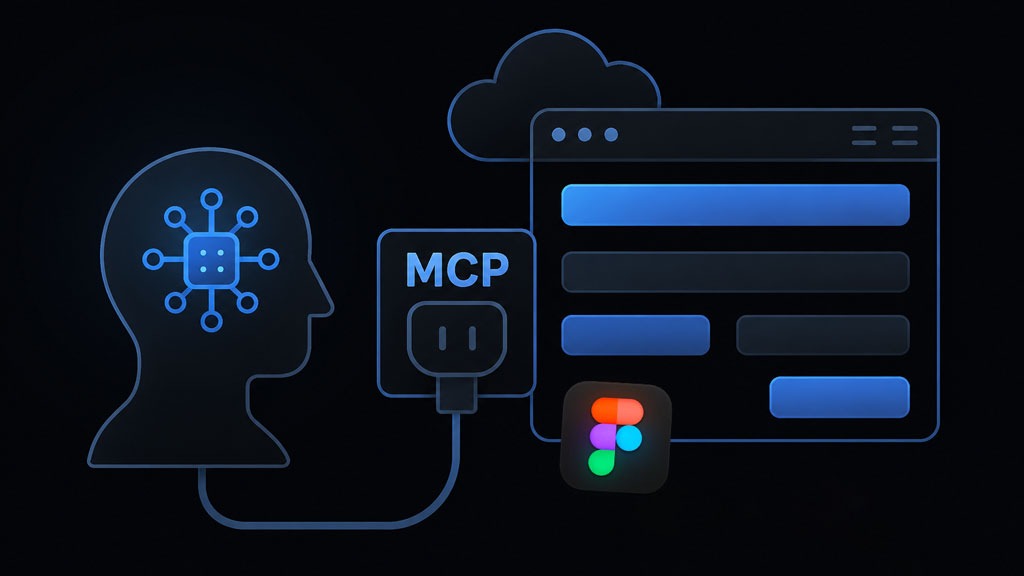
MCP stands for Model Context Protocol. Think of it as a universal plug that lets an AI tool talk to an app like Figma.
Before MCP, every AI tool needed its own custom connection to Figma. Now there’s one shared way to do it. Figma built its own MCP server around this standard and released it in beta in June 2025.
Here’s the short version: instead of an AI looking at a picture of your design and guessing, it can now read the actual file. It sees the layers, the components, the colors, all of it.
There are two versions of the server:
- Desktop server — runs on your computer, inside the Figma app. Good for reading designs and writing code.
- Remote server — runs online at one shared web address. This is the only version that can also make changes back inside Figma.
How Do You Connect to It?
Setting it up is different depending on which tool you use, but the idea is always the same: point your AI tool at Figma’s server address.
For example, in VS Code:
- Open the command palette and search for “MCP: Add Server.”
- Choose HTTP.
- Paste in this address:
https://mcp.figma.com/mcp - Switch the chat into Agent mode.
- Type
#get_design_contextto check that it’s working.
If you use Claude Code, it’s even simpler. Just run:
claude plugin install figma@claude-plugins-officialOnce it’s connected, using it is easy. Copy the link to any frame in Figma. Paste it into your AI tool and ask it to build that design. Your AI can’t actually open the link in a browser, but it can pull the ID out of the link and use that to grab the right design.
What Does /get_design_context Do?
This is the main tool, and the one you’ll use most.
Point it at a Figma frame, and it hands back three things:
- Code (usually React with Tailwind CSS)
- A screenshot of the design, so the AI can double-check its own work
- Extra details about the layout and structure
You don’t have to use React. Your AI tool can take that code and turn it into whatever you actually need: Vue, Swift, plain HTML, anything.
A few smaller tools work alongside it:
- get_metadata — gives a quick map of a design without pulling every detail. Good for large files.
- get_variable_defs — pulls out your actual color and spacing values, so the AI uses your real design tokens instead of made-up numbers.
- get_screenshot — just a picture of the selected design, for visual reference.
- get_code_connect_map — connects a Figma component to the matching component already in your codebase.
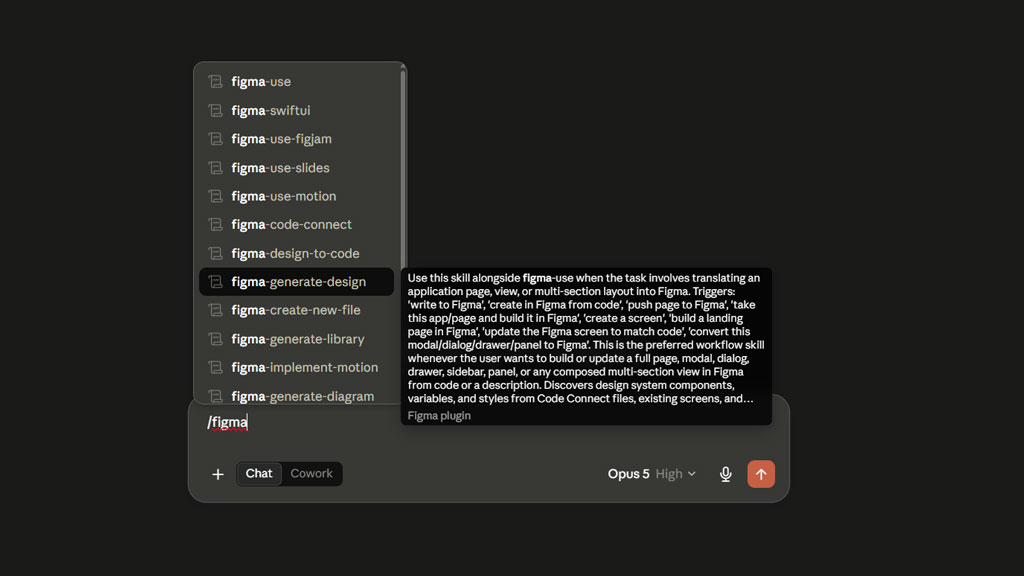
What Is /figma-generate-design?
This one works the opposite way. Instead of turning a design into code, it turns code (or even just a description) into a Figma design.
Say you already built a page in your app and now want it in Figma too. This tool can build that for you, using your real components and design tokens where possible. It builds the design piece by piece instead of dumping everything into one messy frame.
There are a few similar tools for different jobs:
- figma-generate-diagram — turns a description into a flowchart or diagram inside FigJam.
- figma-generate-library — builds a full design system in Figma (colors, spacing, components) based on your existing code.
- figma-swiftui — moves designs back and forth between Figma and SwiftUI, for iOS apps.
All of these rely on one shared tool behind the scenes called use_figma, which is what actually makes changes inside your Figma file.
Can AI Actually Edit My Figma File?
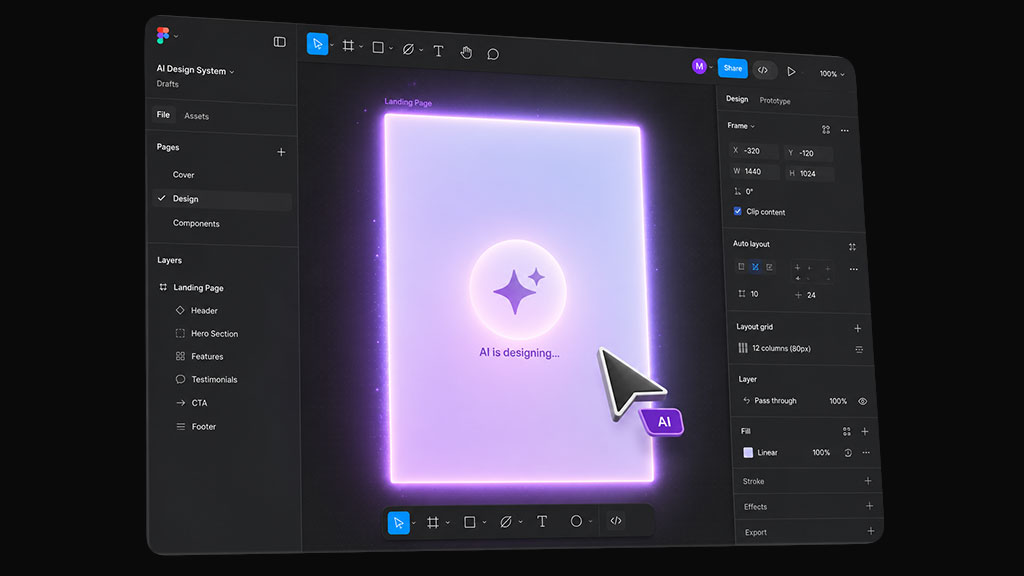
Yes, but only through the remote server, not the desktop one.
With the remote server, an AI tool can create new frames, add components, and set up variables directly inside Figma. It’s not just reading anymore. It’s building.
This feature is free for now, while it’s still in beta. Figma has said it will likely become a paid feature later on, so keep that in mind if you plan to rely on it long-term.
What Does It Cost?
It depends on your Figma seat, not just your plan.
- Free, View, or Collab seats: limited to 6 tool calls per month. That’s barely enough to test it out.
- Dev or Full seats on Professional, Organization, or Enterprise plans: much higher limits, enough for daily use.
One more thing worth knowing: some users have reported the desktop server occasionally acting up, returning empty or broken responses. If a tool that usually works suddenly stops, it’s worth checking Figma’s forums before assuming it’s something you did wrong.
How Do You Get Better Results?
The biggest thing that improves your results isn’t a setting. It’s Code Connect.
Without it, the AI doesn’t know your components already exist, so it just makes up new ones. With Code Connect turned on, it knows that a button in your design maps to the real Button component in your code. That alone fixes most of the “this looks generic” complaints.
A few more quick tips:
- Name your layers properly. “CardContainer” is much more useful to an AI than “Group 5.”
- Use variables for colors and spacing. That way the AI can pull your real values instead of guessing.
- Don’t select huge frames all at once. Break a full screen into smaller pieces (header, sidebar, card) for faster, cleaner results.
- Write down your preferences once. Tell your AI tool things like “always check the screenshot before writing code” so you don’t have to repeat it every time.
- Be specific in your prompts. Instead of “build this,” try “build this using our Button component” or “save this to src/components/PricingCard.tsx.”
Frequently Asked Questions
It depends on your seat type. Free, View, and Collab seats get only 6 calls a month. Dev or Full seats on paid plans get much higher limits. Writing changes back into Figma is free for now, but that will likely change once it’s out of beta.
VS Code, Cursor, Claude Code, Gemini CLI, and Windsurf all support it officially. Any tool that supports the same connection type (Streamable HTTP) can technically connect too.
The desktop server runs on your computer and works with whatever file you have open. The remote server runs online and is the only version that can make changes inside your Figma file.
Not required, but it makes a big difference. Without it, the AI invents new components instead of using your real ones. Most complaints about “generic-looking” AI code come down to skipping this step.
Yes. The figma-generate-library tool can build out colors, spacing, and components in Figma based on code you already have.
Sources: Figma Blog, “Introducing our Dev Mode MCP server,” June 2025, retrieved 2026-08-03, https://www.figma.com/blog/introducing-figma-mcp-server/. Figma, mcp-server-guide (GitHub), retrieved 2026-08-03, https://github.com/figma/mcp-server-guide. Figma Developer Documentation, “Tools and prompts,” retrieved 2026-08-03, https://developers.figma.com/docs/figma-mcp-server/tools-and-prompts. Figma Help Center, “Guide to the Figma MCP server,” retrieved 2026-08-03, https://help.figma.com/hc/en-us/articles/32132100833559-Guide-to-the-Figma-MCP-server.